Voice Prompting on Mac: How to Speak Better Prompts into ChatGPT, Claude and Cursor
A better AI answer often starts with a better request. Voice prompting lets you explain the full task naturally, turn that explanation into editable text, and send a prompt with the context you might have skipped at the keyboard.
Speak the context. Review the prompt. Then send.
What is voice prompting?
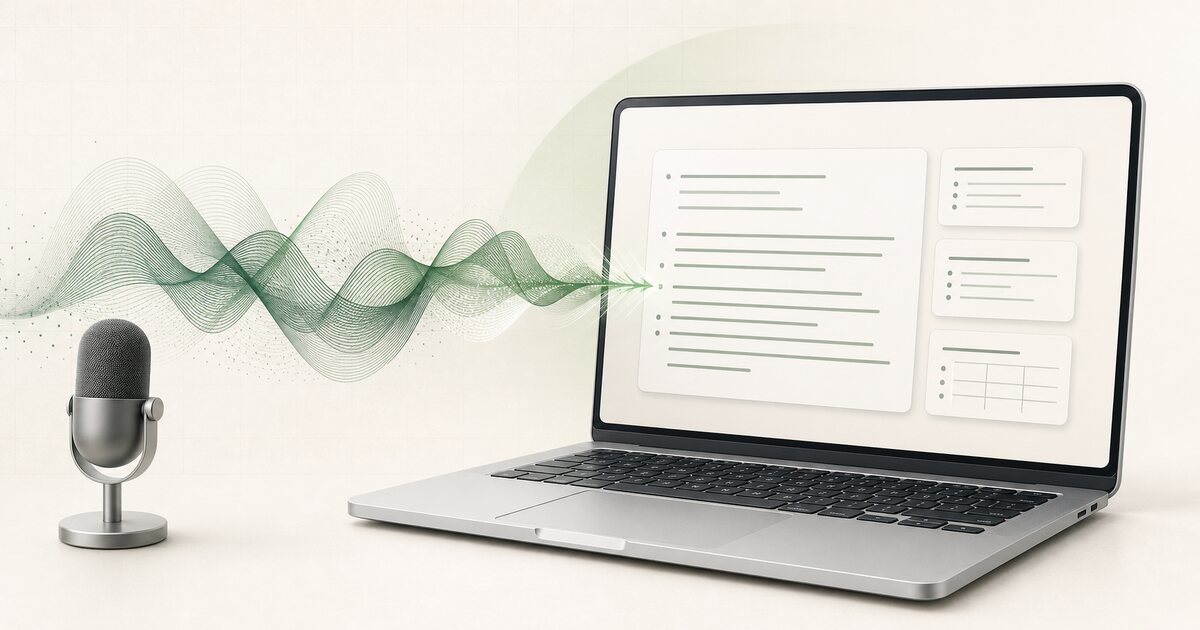
Voice prompting means speaking an instruction instead of typing it. A voice typing app converts your words into written text inside ChatGPT, Claude, Gemini, Cursor, Perplexity, or another AI tool.
It is different from sending a voice message. The result is an editable prompt. You can read it, correct a name, add a missing constraint, and decide when to submit it. The AI still receives text. Voice simply becomes the faster way to create that text.
Quick answer
Why voice can improve prompts
Typing can quietly shrink a request. You remove the background, shorten the explanation, or settle for a vague sentence because writing the complete brief feels like work.
Compare “Write a project update” with this:
A stronger spoken prompt
“Write a project update for our client explaining that development is complete, quality testing will continue until Thursday, and the planned Friday launch is still achievable. Keep the tone confident, but do not guarantee the launch until testing is finished.”
The second version gives the AI a goal, audience, timeline, tone, and boundary. Voice does not make the model smarter. It makes it easier for you to provide the details the model needs.
This works especially well on a Mac because a system-wide dictation app follows the cursor. You can speak a research request into ChatGPT, a coding brief into Cursor, a rewrite instruction into Claude, or a data question into a spreadsheet assistant without recording somewhere else and copying the transcript across.
How to speak a better AI prompt
You do not need a complicated prompt formula. Speak five parts in a natural order:
A simple speaking pattern is: “I need you to [task]. The background is [context]. This is for [audience]. Please include or avoid [requirements]. Give me the answer as [format].”
It should still sound conversational. The structure is a memory aid, not a script.
Practical voice-prompting examples
“Write a professional email to our client explaining that the reporting dashboard will be delivered two days later than planned because we are validating the attribution data. Make it clear that the campaign itself is running normally. Apologise for the reporting delay without making the message sound alarming.”
Marketing analysis
“Review the campaign figures I will paste below. Compare spend, leads, cost per lead, purchases, and return on ad spend. Identify what should be paused, what can be scaled, and what needs more data. Do not recommend scaling any campaign with a return on ad spend below one.”
Content planning
“Create a blog outline targeting the keyword private voice typing app for Mac. The audience is professionals who use AI assistants but do not want everyday dictation sent to a cloud transcription service. Use a practical tone, include a direct answer near the beginning, and avoid unsupported security claims.”
Code review
“Review this React component and find out why the form submission fires twice. Keep the current user interface unchanged. Explain the cause first, then provide the corrected component with comments only around the lines you changed.”
For coding, dictate the behaviour and constraints rather than syntax character by character. See our guide to dictating code prompts into Cursor, VS Code, and Claude Code.
Privacy and the two data paths
AI prompts can contain client names, internal project details, financial figures, legal wording, private code, or unpublished work. Voice prompting introduces two separate data paths:
- The dictation layer listens to your speech and turns it into text.
- The AI platform receives the finished prompt after you submit it.
An on-device dictation tool can keep the first stage local. WhisperBud’s part ends after it places the cleaned text at your cursor. Nothing reaches ChatGPT, Claude, Gemini, Cursor, or another AI service until you choose to submit that text inside the service. At that point, the AI service receives the prompt under its own privacy and data-handling terms.
WhisperBud runs everyday speech recognition and text cleanup locally on your Mac. After the one-time model setup, the core dictation workflow can also work offline. That removes an extra cloud transcription provider from the path, but you should still decide what is appropriate to share with the AI tool itself.
Build a reliable voice-prompting workflow
- Start with low-risk work. Try email rewrites, outlines, summaries, and brainstorming before consequential tasks.
- Keep one main goal per dictation. A detailed prompt is useful. Five unrelated requests bundled together are not.
- Speak constraints early. Mention word count, audience, tone, fixed facts, and forbidden changes before you forget them.
- Review proper names. Client names, abbreviations, product terms, and technical language deserve a quick check.
- Use voice and keyboard together. Speak the main explanation, then type a small correction or final condition when that is faster.
WhisperBud supports this loop across Mac apps: place the cursor in a prompt box, hold Fn, speak naturally, and release. The cleaned text appears at the cursor. Its local dictionary can remember preferred spellings, and expansions can turn a short spoken phrase into a longer reusable block.
The habit that matters most is simple: voice captures the full thought, review turns it into a deliberate instruction.
FAQs
Can I use voice typing with ChatGPT on a Mac?
Yes. A system-wide voice typing app can place text directly in the ChatGPT prompt field. Speak the request, review the editable text, and submit it when you are ready.
Can I dictate prompts into Claude?
Yes. Voice prompting works in Claude the same way it works in other browser-based or desktop AI tools. The dictation app converts your speech into text inside the active prompt box.
Can voice prompting improve AI answers?
It can help when speaking makes it easier to include useful context, constraints, examples, and background. Voice input does not change the AI model. It helps you give the model a more complete request.
Is voice prompting private?
It depends on both the dictation tool and the AI platform. WhisperBud keeps everyday speech recognition and text cleanup on your Mac and places the finished text at your cursor. Nothing reaches ChatGPT, Claude, Cursor, or another AI service until you choose to submit that text inside the service.
Can I use voice prompting for coding?
Yes. Developers can dictate natural-language instructions into Cursor, Claude Code, VS Code assistants, Terminal tools, and other coding surfaces. Voice works best for the goal, context, constraints, and expected result, while the keyboard remains useful for exact syntax.
Does WhisperBud work without an internet connection?
After sign-in and the one-time local model downloads, WhisperBud can run its everyday speech recognition, text cleanup, and insertion workflow locally without an internet connection.
Based on the supplied Voice Prompting on Mac editorial brief. Product details checked against the current WhisperBud site copy on July 20, 2026.
Speak your next prompt instead of shortening it.
Private, on-device voice typing that puts clean, editable text into ChatGPT, Claude, Cursor, and the rest of your Mac.
Download for Mac